Snes9x
Fast, portable open source SNES emulator
- Open SourceGitHub
- Snes9xDeveloper
- 27 Sep 2026Page Updated
Details
- Developer
- Snes9x
- Source Code
- GitHub
- Page Updated
Supported Systems
Platform Support
- Windows
- Linux
- macOS
- Android
ScreenshotsView All (6)
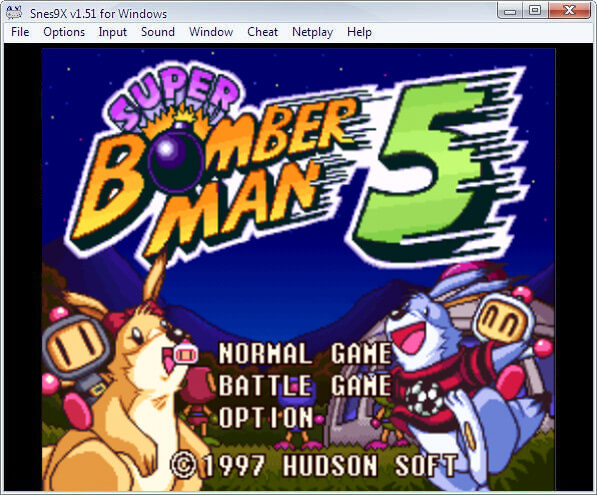
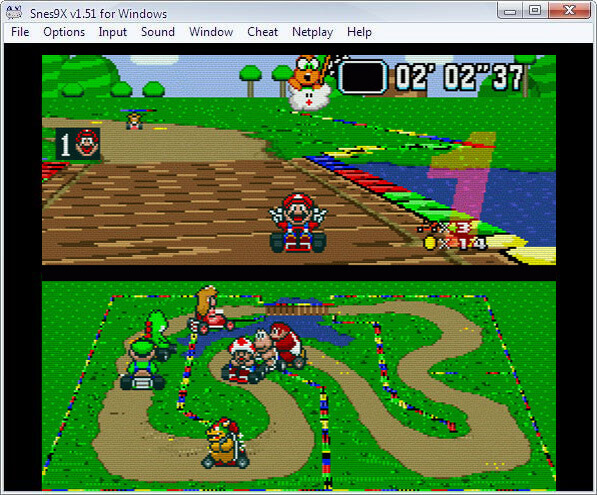
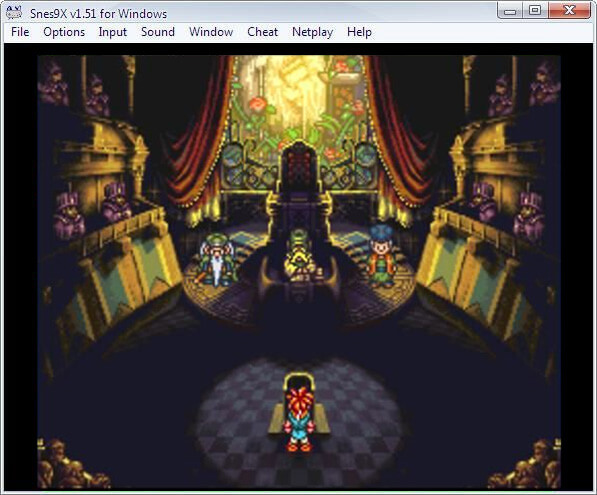
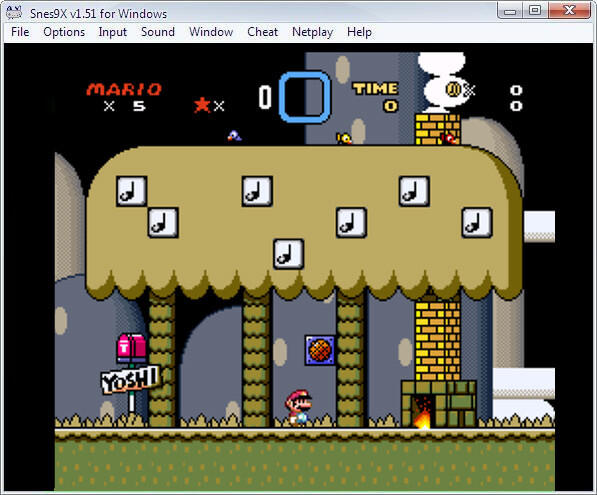
Overview
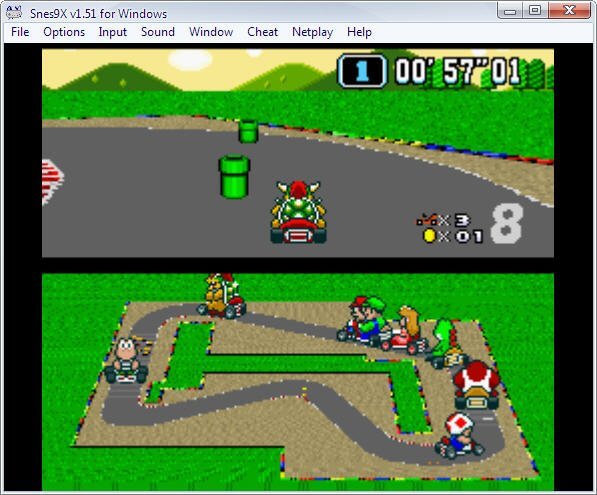
Snes9x is an open source Super Nintendo (SNES) emulator written in C++. It has been in development since the late 1990s and was built from the start to be portable, which is why it runs on almost everything: official builds cover Windows, macOS and Linux, and ports exist for Android, consoles and RetroArch.
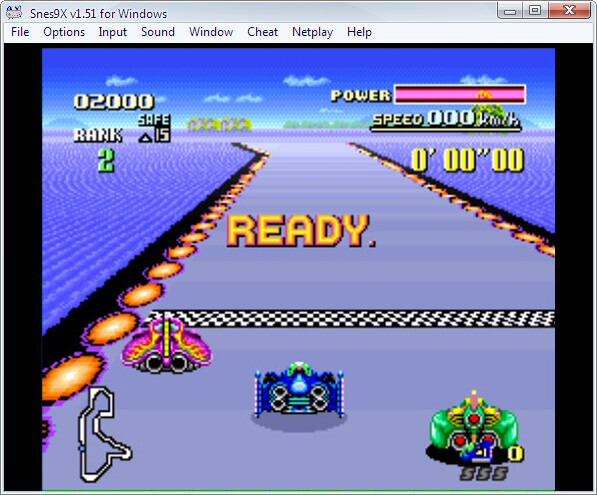
Snes9x aims for a balance of speed and accuracy. It runs nearly every SNES game correctly, including those that use enhancement chips such as the Super FX and SA-1, while staying light enough for older or low-power hardware.
If you want the most accurate SNES emulation possible and have a fast computer, cycle-accurate emulators such as bsnes are the alternative. For most players Snes9x is the simpler choice, with extras such as shaders, rewind, netplay and save states.
Which download to pick
Stable is the last official release and the right choice for most people. Nightly builds are made automatically from the latest source code, so they include recent fixes but have had less testing.
- Windows (64-bit) suits any current Windows PC. The 32-bit build is only needed on old 32-bit Windows installs.
- Linux (64-bit) is an AppImage: make it executable and run it. The Linux (32-bit) button is a much older GTK release kept for 32-bit systems.
- macOS is the native Mac version.
- Android is Snes9x EX+, a separate port by Robert Broglia with its own touch-screen interface. It is based on Snes9x but is released on its own schedule.
System requirements
Snes9x is light. Its Windows readme recommends a CPU of about 1 GHz for near-perfect results, and notes that games with extra chips such as the Super FX need a faster machine than standard cartridges.
Getting started
No BIOS is needed for normal SNES games. The exceptions are the Satellaview (BS-X) and Sufami Turbo add-ons, which need an image of their base cartridge, dumped from your own hardware, placed in Snes9x’s bios folder.
On Windows, open a game with File > Load Game. Snes9x reads uncompressed ROM files as well as ZIP (one game per archive), gzip and JMA files.
Map a keyboard or gamepad under Input > Input Configuration, and tick “Enabled” for each joypad you set up. Optional controllers such as the SNES Mouse and Super Scope are also switched on from the Input menu. Netplay is still in the Windows version, but the developers note it has not been maintained for years and may not work.
Key Features
Highly Portable
Runs on Windows, macOS, Linux, Android and more.
High Compatibility
Runs nearly every SNES game, including Super FX titles.
Netplay
Supports netplay for multiplayer, alongside save states.
Shaders and Rewind
Offers shaders and rewind as extras.