Citra
Discontinued 3DS emulator, succeeded by Azahar
- Citra TeamDeveloper
- 27 Sep 2026Page Updated
Details
- Developer
- Citra Team
- Page Updated
Supported Systems
Platform Support
- Windows
- Linux
- macOS
ScreenshotsView All (7)
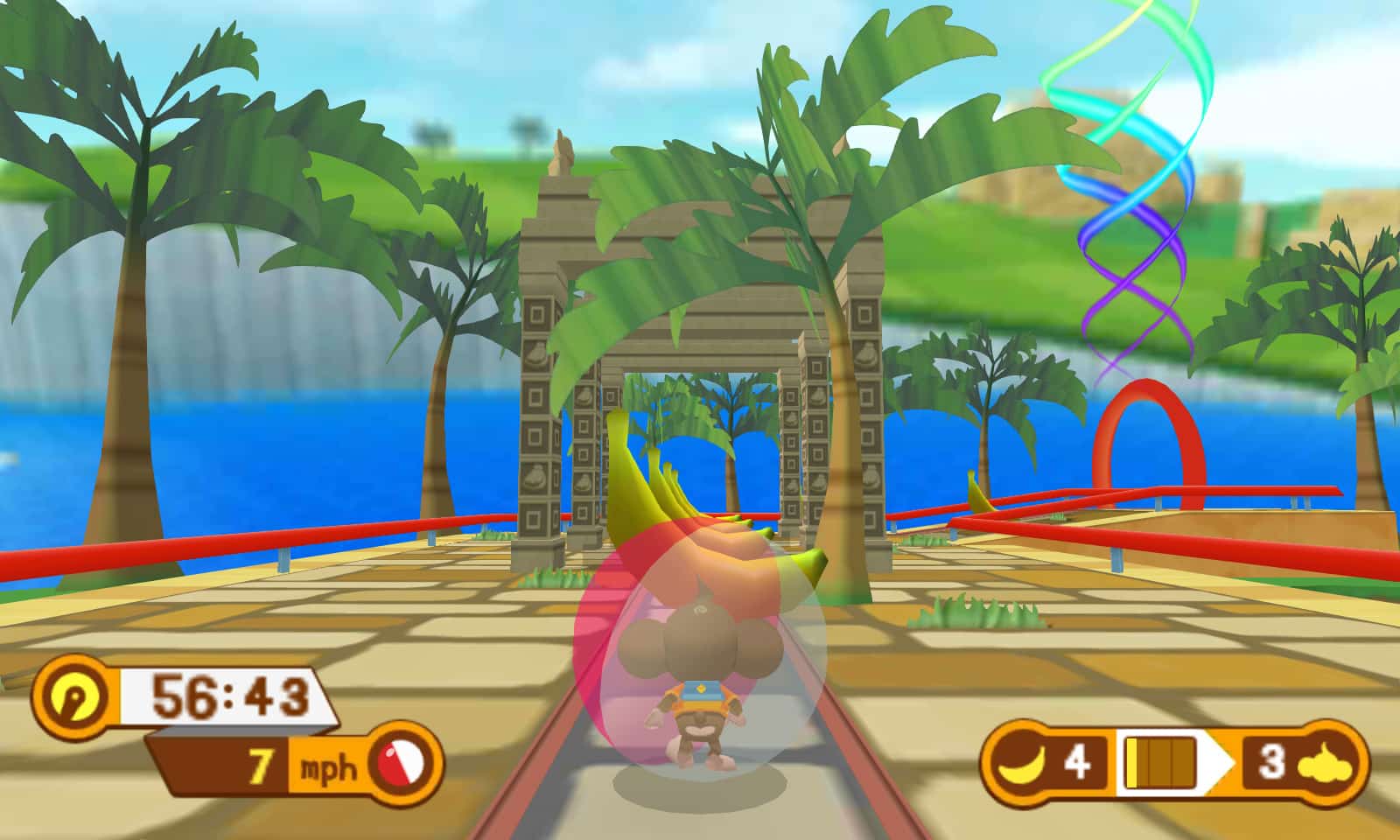
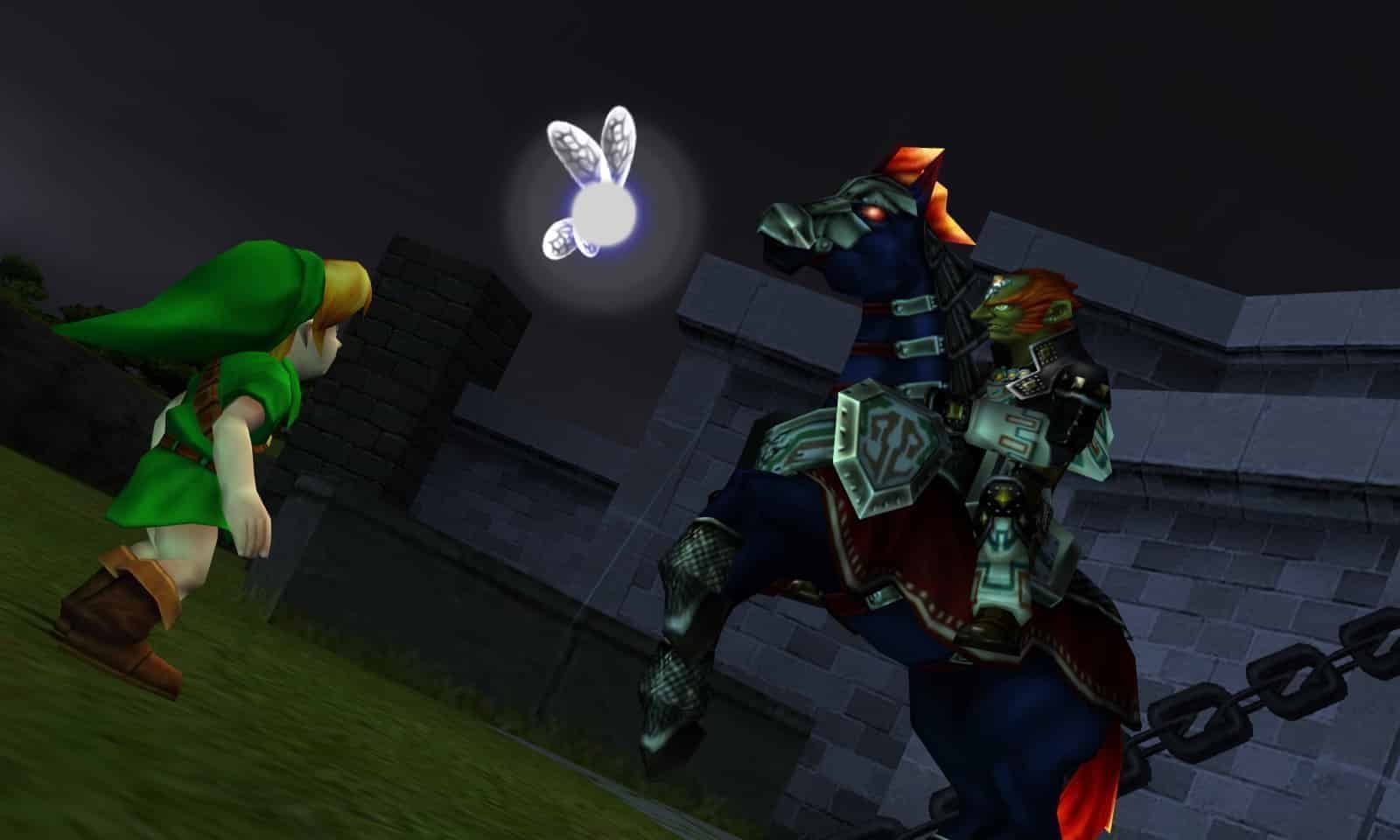
Overview
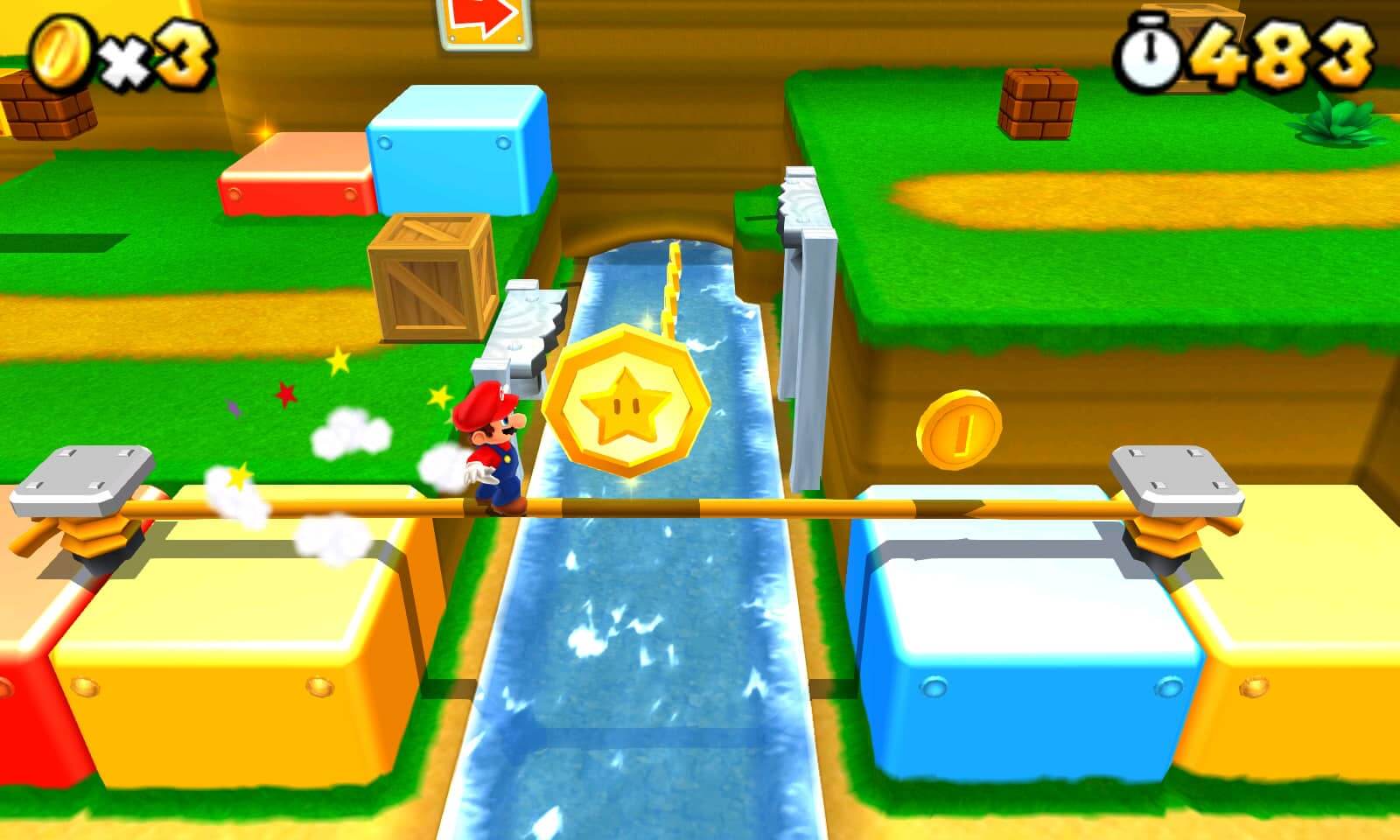
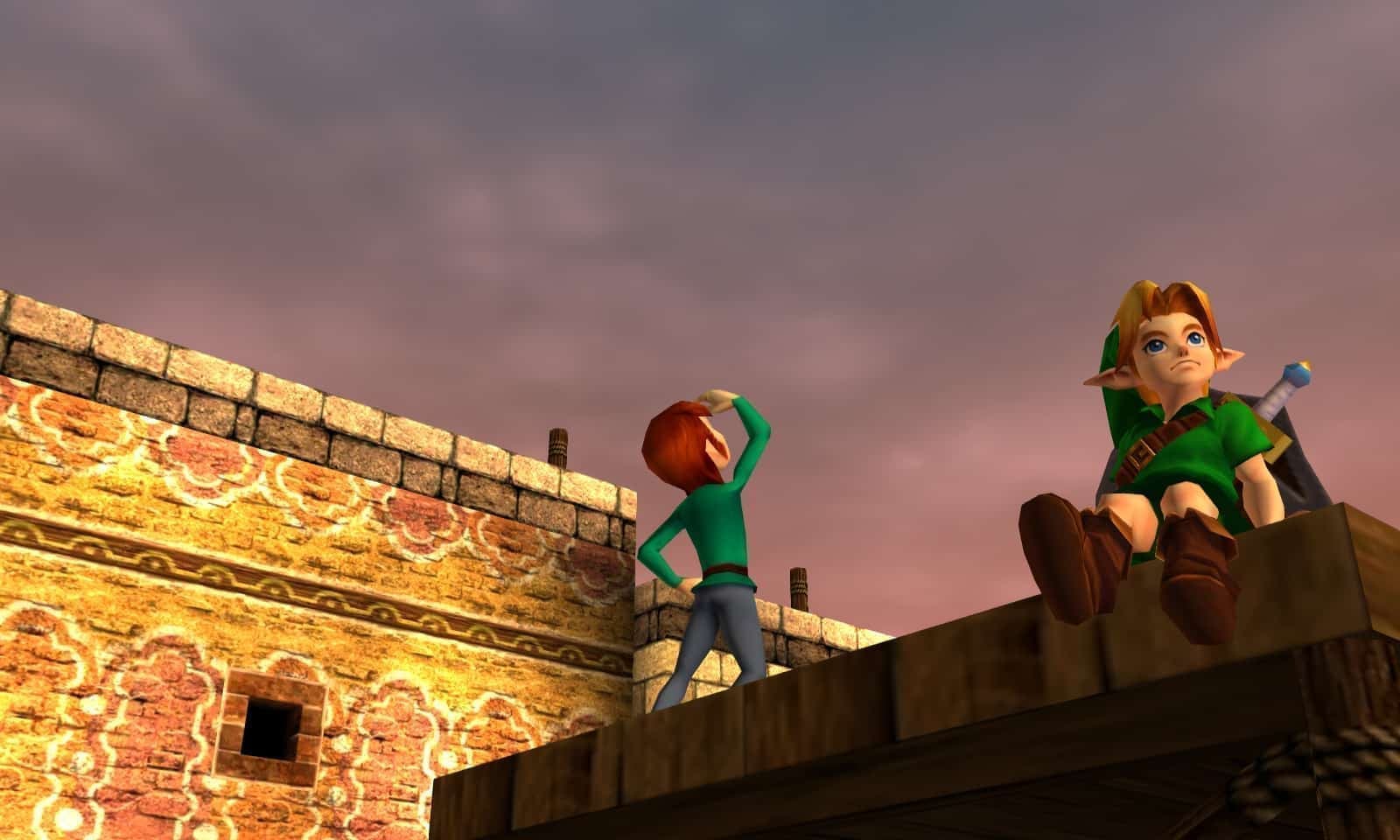
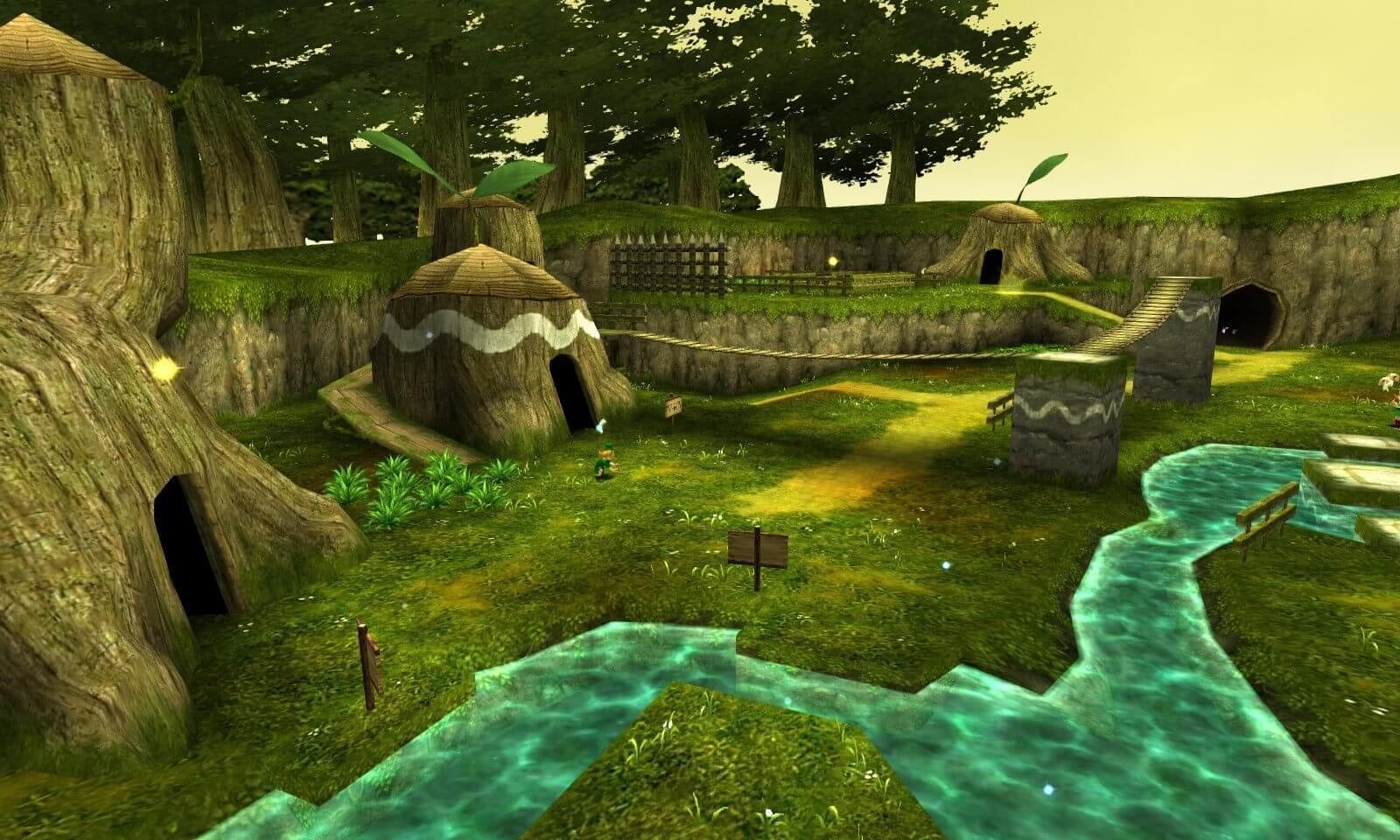
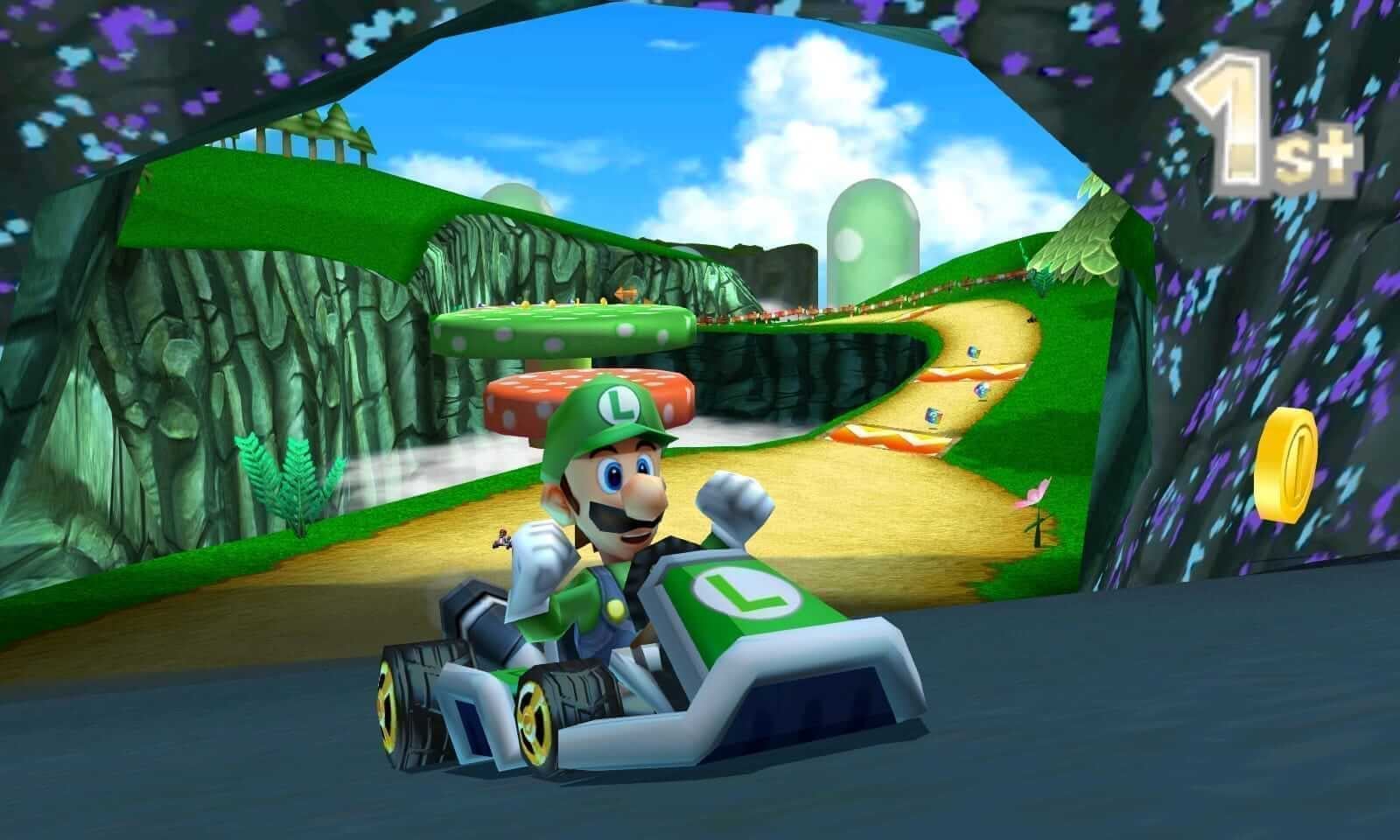
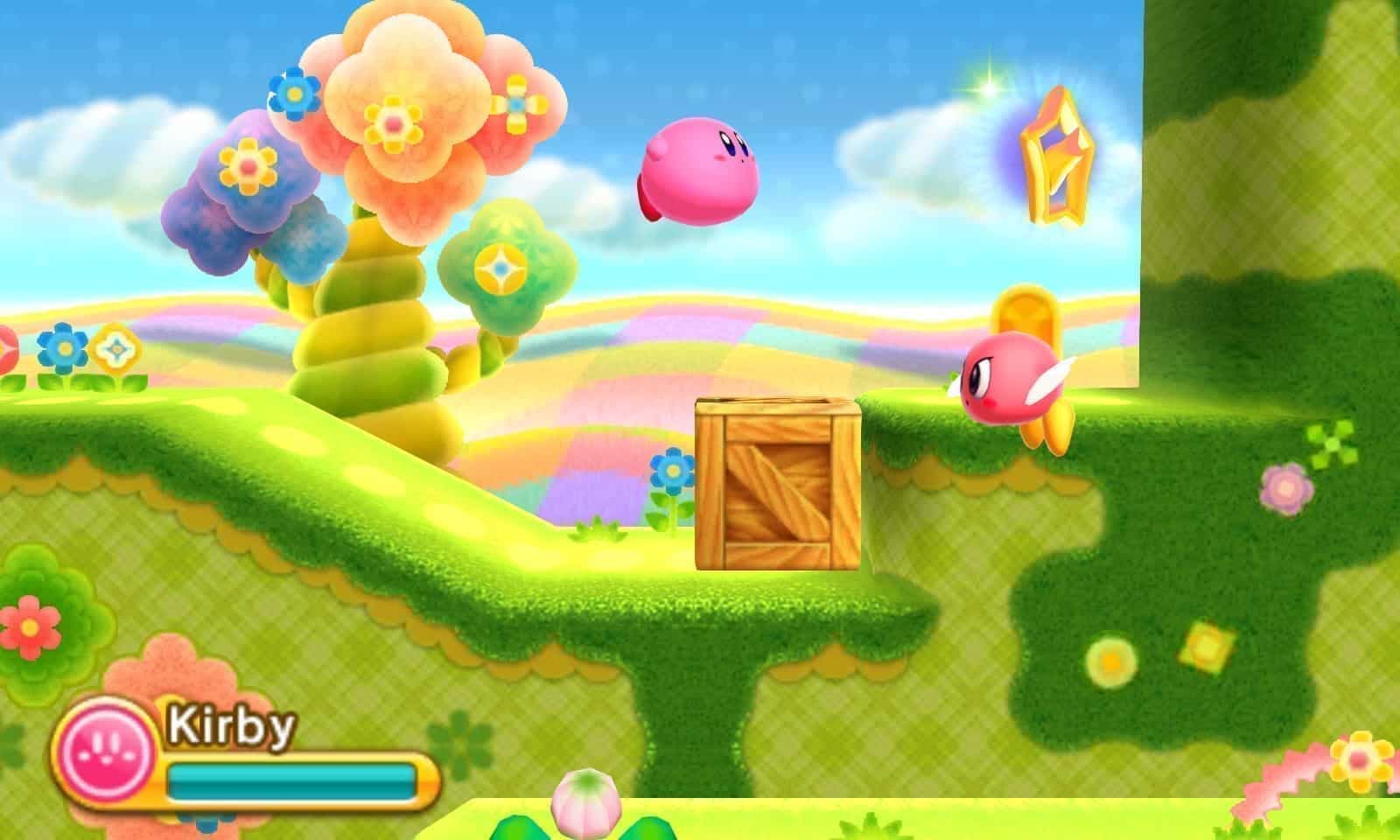
Citra is an open source Nintendo 3DS emulator that runs on Windows, macOS, Linux and Android. It started in 2014 and grew into the most complete 3DS emulator available, able to play much of the 3DS library at full speed and at higher resolutions than the original handheld.
Official development of Citra stopped in March 2024, when the project was taken offline following Nintendo’s legal action against the developers of the Switch emulator Yuzu. The builds here are the last official releases and still work, but they won’t receive fixes.
Development continues in community forks built on Citra’s code. The main one is Azahar, formed in late 2024 when the Lime3DS fork and a fork run by a former Citra developer merged, with its first public release in early 2025. For current fixes and newer platform support, Azahar is the place to look.
Note: Citra needs games and system files dumped from your own Nintendo 3DS.
Which download to pick
There are two desktop channels, both from the final days of the project in March 2024:
- Nightly was Citra’s standard release channel. Pick this one unless you have a reason not to.
- Canary was the preview channel, with experimental changes that had not yet reached Nightly.
Each comes for Windows, for Linux (an AppImage inside the archive) and for macOS (a universal build for Intel and Apple Silicon Macs). The Android build is an older beta from 2021, well behind the desktop versions.
System requirements
Citra’s last published requirements for PC were a 64-bit copy of Windows 10 or newer, macOS Big Sur or newer, or a modern 64-bit Linux, an x86-64 CPU with a single-thread PassMark score above 1,800, and a GPU supporting OpenGL 4.3 or Vulkan 1.1. On Android it asked for Android 8.0 (64-bit), a Snapdragon 835 or better and OpenGL ES 3.2 or Vulkan 1.1. Single-thread CPU speed matters most.
Getting started
- Dump your games from your own 3DS. Citra reads formats such as .3ds, .cxi and .cia.
- Put them in one folder, then use “Add New Game Directory” in the game list so Citra scans it.
- Set up your keyboard or controller in the Controls section of Emulation > Configure.
- In the graphics settings, the internal resolution option renders games above the 3DS’s native resolution. Raise it one step at a time and check the speed.
Key Features
Full Speed
Played much of the 3DS library at full speed.
Higher Resolutions
Renders games above the 3DS's native resolution.
Cross-Platform
Final builds for Windows, macOS, Linux and Android.
Open Source
Its open source code lives on in community forks.