Tail Concerto Recompiled
PC port of Tail Concerto
- RecompilationPort Type
- AlexbeavDeveloper
- 16 Nov 2026Page Updated
Details
- Developer
- Alexbeav
- Port Type
- RecompilationA tool translated the game's original machine code into C automatically, which was then built as a native PC program.
- Game
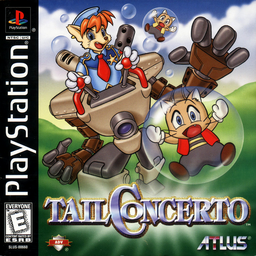
- Tail Concerto
- AI Use
- AI-assistedThe project says: “This project was developed with AI assistance. AI assists with code, documentation, and investigation; Alex tests the game and makes release decisions.” Source
- Source Code
- GitHub
- Page Updated
Platform Support
Screenshots
Overview
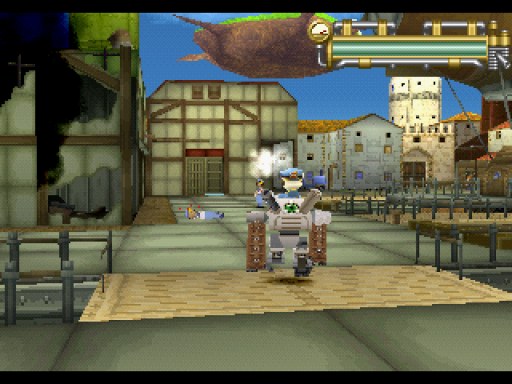
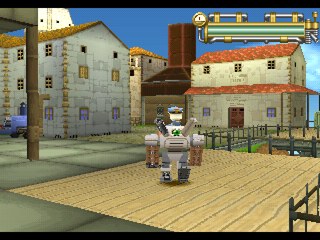
Tail Concerto Recompiled rebuilds Tail Concerto as a native program for Windows, Linux and macOS through static recompilation with PSXRecomp. What you download is a build kit rather than a finished game: the recompiler, the recomp-ui launcher and a setup wizard. The first time it runs, the wizard reads your own disc, turns the game’s code into C and compiles it on your computer, which takes several minutes.
Optional enhancements include higher internal resolution, PGXP geometry correction, a CRT filter, faster loading and CD speed, and the launcher adds save states, rewind and input replays. Version 0.1.3 passed the author’s automatic build and package checks for all four platforms, and on Windows a test build replayed its one recorded route to the end without crashing. Setup was checked on Windows with the released package, but gameplay and setup on Linux and macOS are unverified, so it is an early release.
The author says AI helps with the code, documentation and investigation, while the author tests the game and makes the release decisions. The download contains no game data or BIOS. It needs Tail Concerto (USA, SLUS-00660) dumped from your own disc, and a US SCPH-1001 BIOS dumped from your own console.
How to Set It Up
- Download the zip for your system: Windows x64, Linux x64, or macOS for Apple Silicon or Intel.
- On Windows the setup wizard downloads the build tools it needs; on Linux and macOS install CMake, Ninja, Python 3 and a C/C++ compiler first.
- Extract the zip into a writable folder and run
Tail_Concerto(Tail_Concerto.exeon Windows). - In the setup wizard select your CUE file (keep its BIN files beside it) or CHD and your BIOS dump, then choose Generate & rebuild.
- The first run compiles the game and takes several minutes; later launches start it directly.
Advertisement
Download Tail Concerto Recompiled
What's new in v0.1.3
Tail Concerto 0.1.3 moves from psxrecomp pin I 0.1.20 (v0.1.2) to pin I 0.1.23 (psxrecomp 578bd3b, recomp-ui 5302f1f). Nothing else changes in this title’s repository.
New features
These came with 0.1.1 and are part of 0.1.3. If you are updating from an earlier version, they are new to you.
Replays: Replay recording is now supported in Tail Concerto. Press F12 to start recording during play, then F12 again to stop and save in an available replay slot.
Recording needs at least one free replay slot. If every slot is occupied, the game shows “No free replay slots”. Open the save states menu with F7, then press Tab to switch between Save States and Replays. Select a recording and press Enter to play it, F2 to rename it, Delete to remove it or E to export it.
Replays record your inputs rather than video, so you can share them as lightweight files with someone using the same version of the game. Compatibility with different versions is not guaranteed. Differences in the game build, disc, BIOS or replay settings can affect playback.
Press a gameplay control to stop a replay and take control at that point. When a replay finishes, the game continues from its recorded endpoint under your control.
You can record during play or from boot. To record from boot, tick “Record replay” in the GUI launcher before starting the game. F12 stops and saves this recording too. F12 and F7 are the default shortcuts and can be rebound; F11 toggles fullscreen.
To keep replay timing repeatable, both recording and playback use interpreter mode instead of native compiled execution. This can reduce performance, especially on weaker systems.
Recording currently supports a single Player 1 pad. PS1 Mouse, neGcon, GunCon, multitap and netplay recording are not supported.
Keyboard profiles: Save named keyboard profiles and reuse them across sessions. Use Save as, Load, Rename and Delete to manage your profiles. The Default profile stays protected.
Dual key bindings: Assign up to two keyboard keys to each action. Right-click a binding to clear it. Duplicate assignments stay visible and are highlighted so you can resolve conflicts.
PS1 Mouse, neGcon and GunCon: These controller types can be selected for games that support them. Whether Tail Concerto uses one of them was not tested.
Launcher improvements: Each configured player gets a separate controls tab. The launcher remembers downloaded cover art and lets you choose a replay as a startup option.
Portable paths: Portable packages can retain local disc, BIOS and save paths when you move the game folder. Move the whole installation, including its configured local files.
CHD disc images: Setup accepts CHD, a compressed disc-image format, in the file picker for supported discs.
Movies fill the picture: A 24-bit movie frame is shown at its own height, so the black bars above and below a movie are gone. Setting: Display, “Crop movies to the picture”. From 0.1.3 it is off by default (see Changes).
Save-state compatibility: Make an in-game save before updating, and keep a backup of your old installation and memory cards. Save states from older builds can be incompatible with this update.
Changes
- Two of the game’s graphics transfers (DMA) are handled as the PlayStation does; before, some menus could be drawn over the previous frames.
- OpenGL renderer: more exact triangle edges and one-pixel strips, closer to the software renderer.
- Interlaced (480i) screens: the field on display is no longer drawn over.
- Movies are shown uncropped by default.
- In-game menu: Restart game (a cold boot of the disc), the look rows (renderer and picture options), window size, volume, controller 1 port and disc reinsert.
- New Advanced setting, GPU drawing time (Settings > Advanced), off by default. It times the GPU’s drawing as the PlayStation does; only a few games need it.
…
04a01f80385d94171f97f01998a96433fa3b719fb6d21bf7bc8b42b76a5f862c
6e3fb0f34a3fb4d4a8d2d41e486b5f0e5b8711c492e4ae663a77e3f5057a1068
eba7735b7aabb746b252443baeb4527355a4169047c30e40e0453963a163a750
7024200087a93b17f46933c8535e2b9ad945d96f680b3f32c5c4d08e24d842a4
8a0a5bccdca180f481727e068f15f8814ff31d1701dd6fad9e4f6435d93efacc