UltraTears
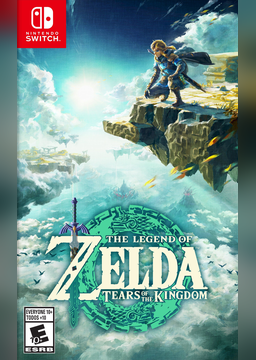
PC port of The Legend of Zelda: Tears of the Kingdom
- RecompilationPort Type
- kuraeowDeveloper
- 2 Nov 2026Page Updated
Details
Platform Support
- Windows
- Linux
Screenshots
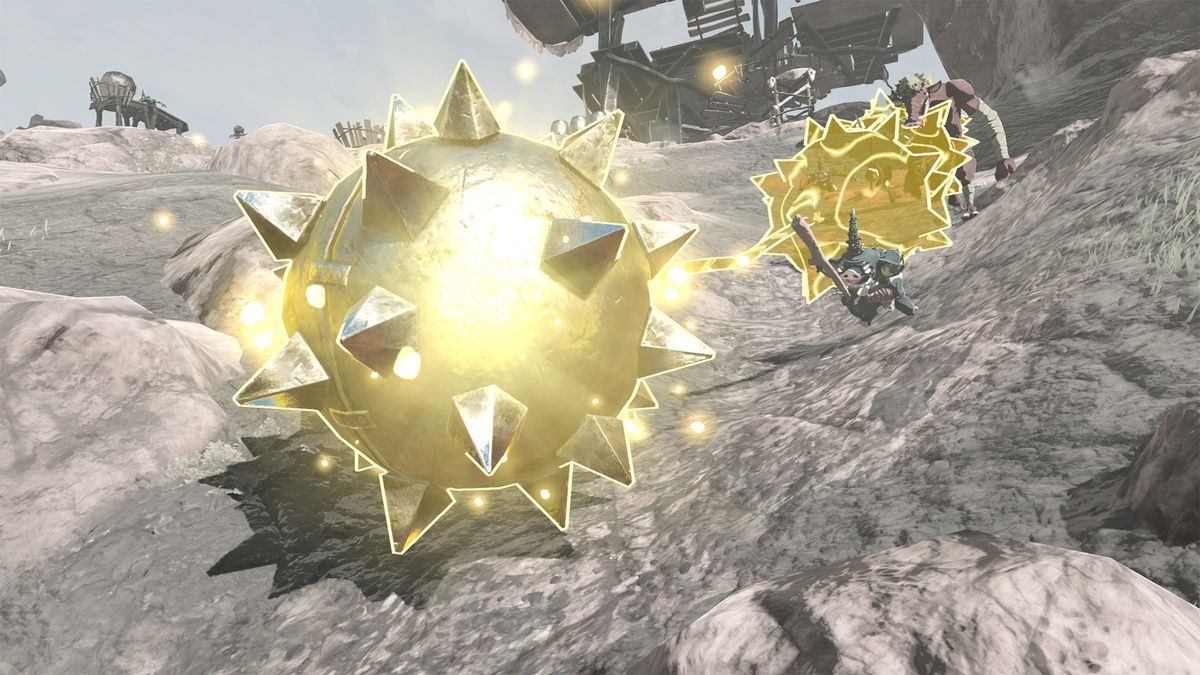
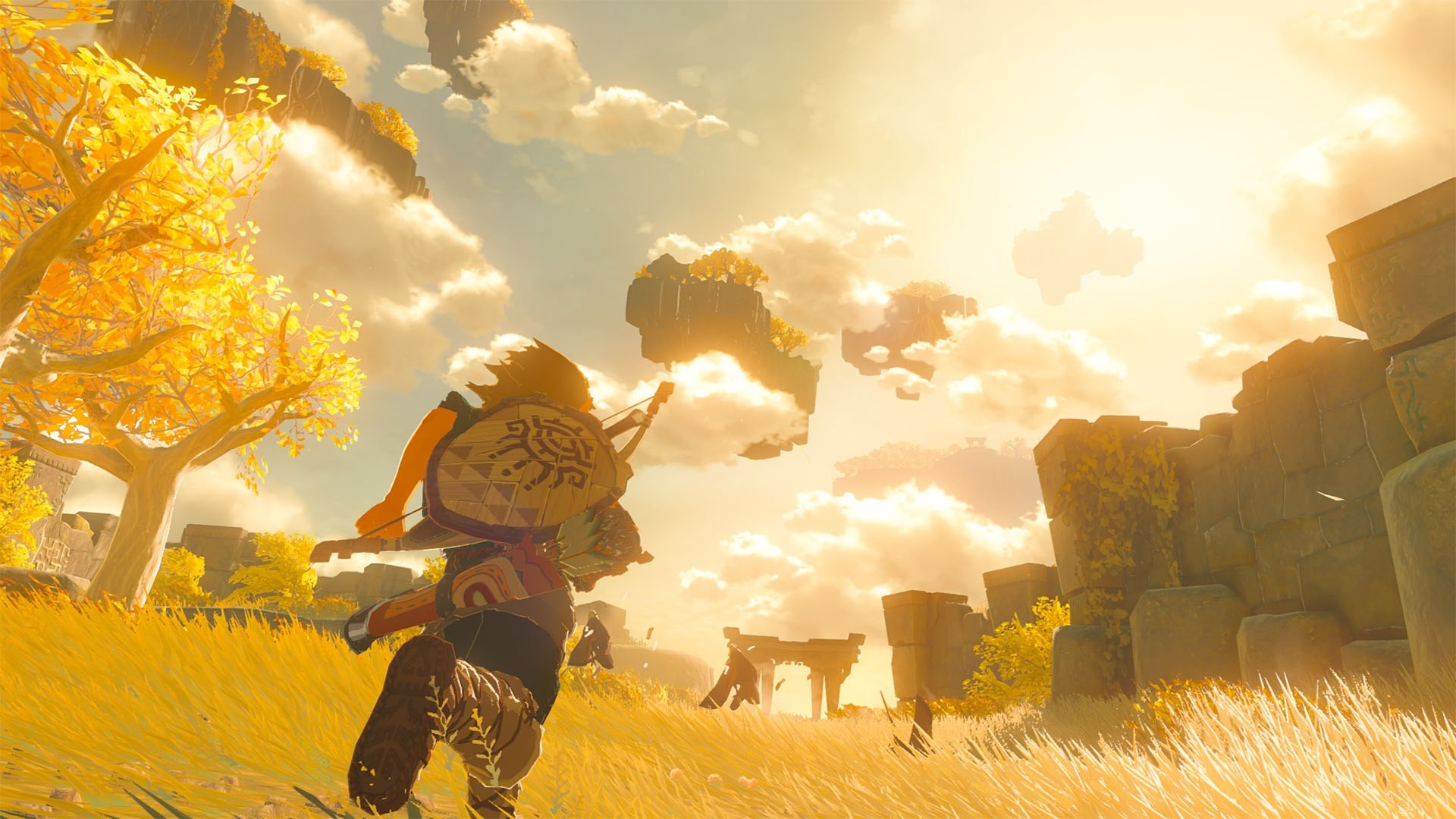
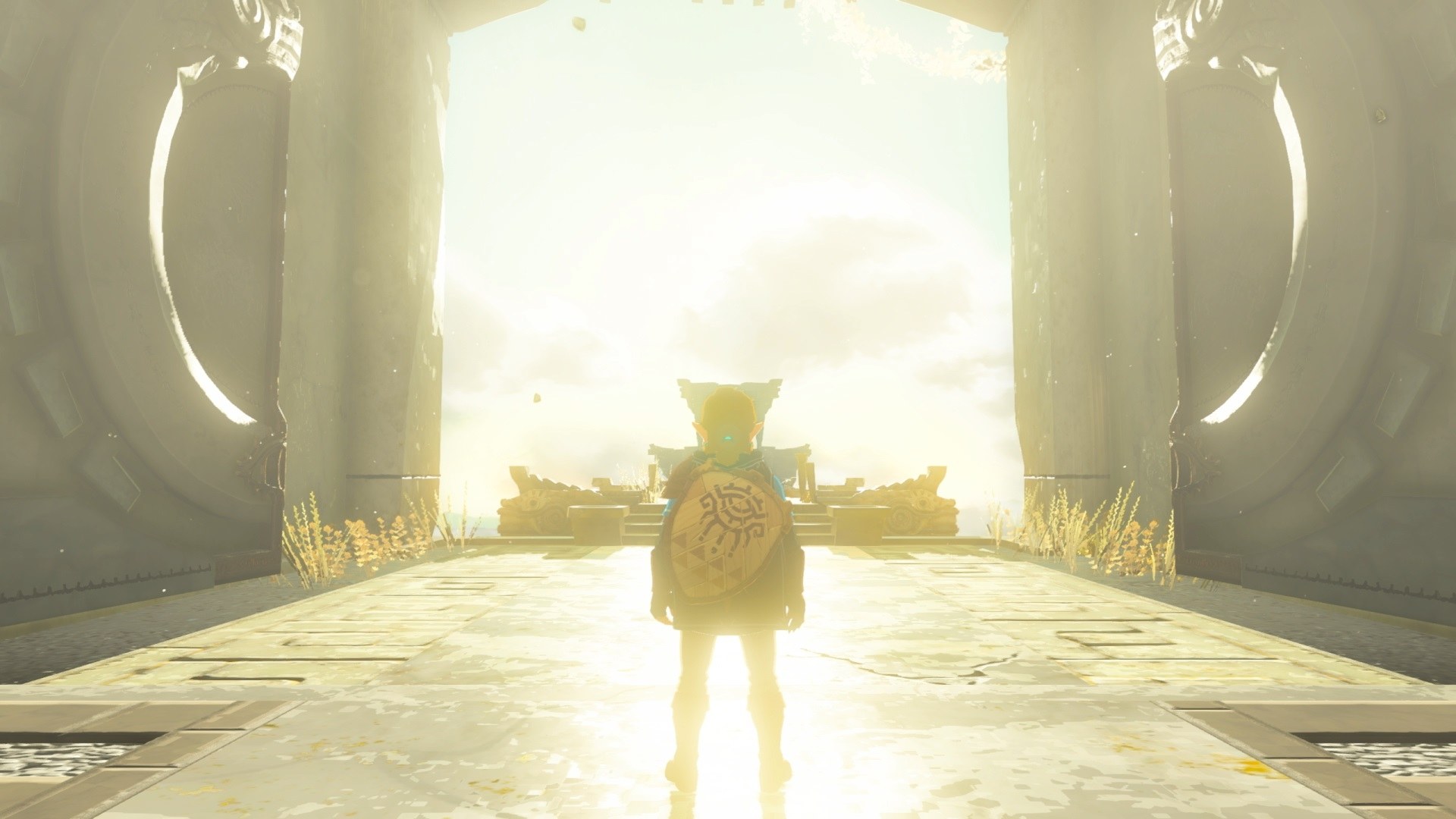
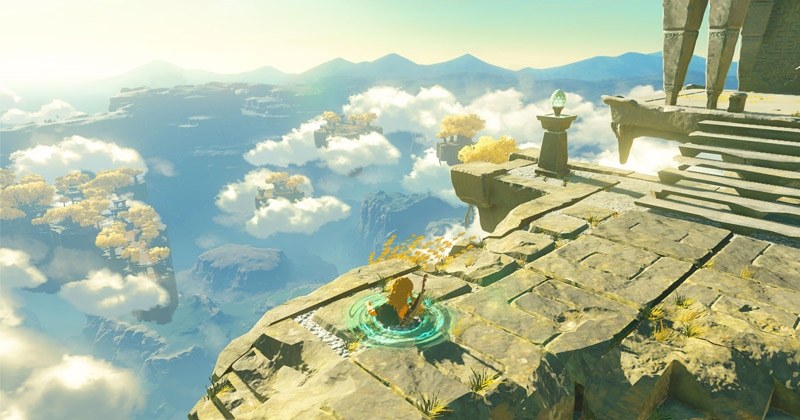
exefs and romfs folders. Windows 10 or 11, or Linux with kernel 6.7+ and glibc 2.34+ (SteamOS 3 has both); a graphics card with a current Vulkan 1.3 driver and 4 GB of video memory, 16 GB of RAM and about 40 GB free.Overview
UltraTears builds a native PC version of The Legend of Zelda: Tears of the Kingdom, version 1.4.3, for Windows and for Linux and the Steam Deck. It is not an emulator: the game’s code is translated to native code ahead of time, and its shaders and textures are prepared while the game is built rather than while it is played.
Everything made from the game is made on the player’s own computer, from their own dump, and is for their own use. The project provides no game files, keys, firmware or dumping tools and decrypts nothing. A Windows PC can also prepare a Steam Deck copy of the game to copy across.
UltraTears is a separate project from TotK Recomp, the other native port of the game listed here.
How to Set It Up
- Download the Windows zip and extract it into its own folder, or download the AppImage for Linux and the Steam Deck and allow it to run as a program.
- Start
UltraTears Launcher.exe(or the AppImage). If SmartScreen warns about it, choose More info, then Run anyway. - Choose the folder that holds
exefsandromfsand click Prepare the game. The game is built once, in about 30 minutes. - Click Play. On a Steam Deck, add the AppImage in the game folder to Steam as a non-Steam game, with
--playin its launch options to skip the launcher. - The launcher finds new versions itself and rebuilds only what changed; saves in
userdataare kept.
Advertisement
Download UltraTears
What's new in v0.2.0UltraTears 0.2.0
UltraTears 0.2.0 builds a native PC version of Tears of the Kingdom 1.4.3 from your own dumped copy, on your PC. No game files, keys or Nintendo code are included.
- A launcher instead of the console: choose your game folder, click Prepare the game, then Play. Settings, updates and a full rebuild are in the same window.
- Steam Deck and Linux (experimental): a native build, made on the Deck from the AppImage or on your Windows PC. Starts from Steam in Gaming Mode.
- 60 fps at the proper game speed, with even frame pacing (up to 240 as a beta).
- Any resolution and screen shape, FSR 1 scene scaling and sharpening, an FPS counter.
- No shader stutter: every shader is compiled for your graphics card while the game is prepared.
- AMD: the black screen on Windows is fixed; a possible fix for flickering fog.
- The Depths draw properly on Windows, and the crash after the bats at the start of the game is fixed.
- Faster texture loading, less memory, smaller downloads, CPUs without AVX2 supported.
Updating from 0.1.0: extract the new zip over your old folder (saves stay) and start UltraTears Launcher.exe.
Known issues: on the Steam Deck the Depths’ ground is missing and the frame rate drops in busy places; some cloth tears; the mouse does not move the camera yet.
Downloads
| File | For |
|---|---|
UltraTears-0.2.0-windows-x86_64.zip (~150 MB) | Windows; it can also build the game for a Steam Deck |
UltraTears.AppImage (~210 MB) | Linux and the Steam Deck |
Follow the README to install.
Full list of changes
The launcher (new)
UltraTears Launcher.exereplacessetup.batand the console window. Choose the folder with yourexefsandromfs(or drop it onto the window) and the launcher checks right away that it is version 1.4.3, and says why if it is not. One click prepares the game: an overall progress bar, every step with the time it took and the time left, a hardware check before the long part, and on an error a button that opens the log. Then: Play.- If the build stops or the PC turns off, Continue preparing picks up where it stopped. The game can be installed into another folder than the one you extracted.
- Updates: once a day the launcher checks for a new release and offers it. It downloads it, verifies its size and SHA-256, puts it in place (your data and saves stay) and rebuilds only what changed.
updates=offinultratears-launcher.initurns this off. - Game settings on the Play screen: window mode, resolution, scene scale, sharpness, frame limit, V-Sync and the FPS counter. A Language tab for the launcher and the game’s text, and a Debug tab: Debug mode for performance reports, F9 snapshots, GPU markers for crash reports, and a full rebuild.
- English and Russian, scaled to the screen (larger on a Steam Deck), usable with a controller.
- A new icon for the game and the launcher: the emblem from the cover.
- Windows SmartScreen may warn about the launcher because it is not signed: More info → Run anyway.
Steam Deck and Linux (new, experimental)
- A native Linux build (not Proton), two ways to the same game folder:
- on your Windows PC: choose For Linux (Steam Deck) or Both platforms in the launcher. You get
UltraTears-SteamDeck.tar(~27 GB) to copy to the Deck and extract; - on the Deck itself: download the AppImage, allow it to run, start it and prepare the game there.
- on your Windows PC: choose For Linux (Steam Deck) or Both platforms in the launcher. You get
- One program:
UltraTears.AppImagein the game folder opens the launcher; with--playin Steam’s launch options it starts the game directly. It starts from Steam in Gaming Mode (a patched AppImage runtime: under Steam it could not findfusermountand quit at once). - Graphics prepared for the Deck’s own GPU: the first Play on the Deck compiles every shader with its driver (about 2 minutes, with a progress bar, once), so the game itself has no shader stalls.
…
bb611d5de6a2cbb8b015d18e536472ea6292e07007577c81646a35d37c5ddbc7
da492aaf8bdaf8736f61625c2bc3b283b9169570cc03843a436f49eb94ab50e3