Super Mario Sunshine PC Port
PC port of Super Mario Sunshine
- DecompilationPort Type
- chasem-devDeveloper
- 26 Oct 2026Page Updated
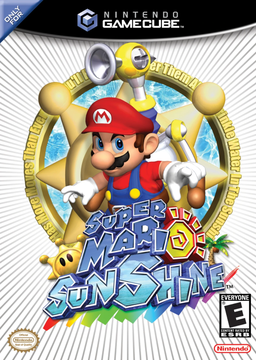
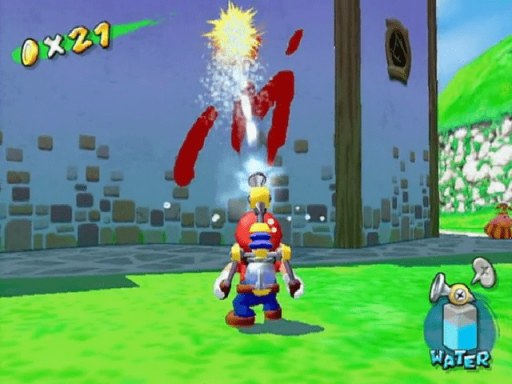
.iso, .gcm or Dolphin .ciso image dumped from your own disc. Super Mario Eclipse needs a full, unmodified .iso.Overview
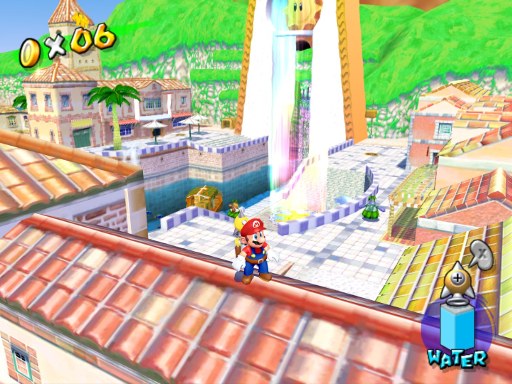
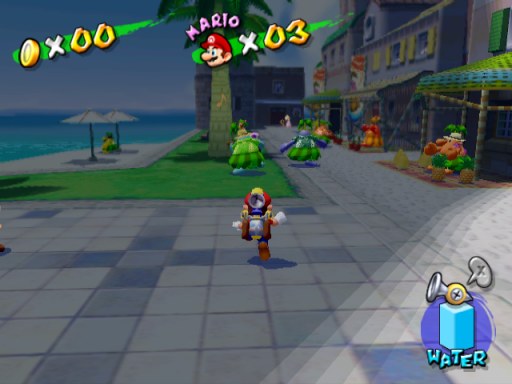
This native PC port of Super Mario Sunshine is built from chasem-dev’s matching decompilation of the North American release, with a platform layer that replaces the GameCube’s graphics, disc, audio and input. The downloads are the SMS Launcher, which fetches the build tools, compiles the port on the player’s own computer and then reads the models, levels, music and movies from the player’s disc image.
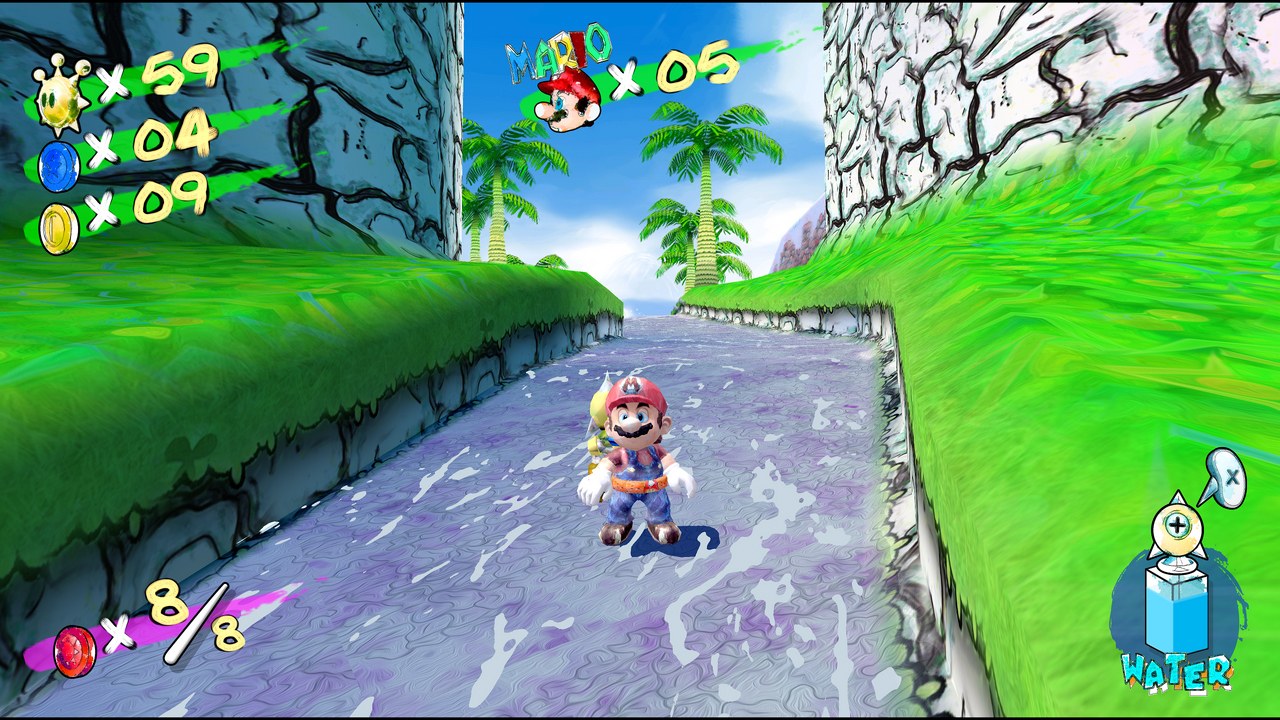
Gameplay runs at 60 frames per second by default, with 30 for the GameCube’s own rate and 120 as an option, while game speed stays the same. The launcher also offers higher rendering resolutions, anti-aliasing, sharpening, a free camera with mouse look and inverted axes, keyboard rebinding, an optional HD texture pack with the 21 cutscenes enhanced at three times their resolution, importing Dolphin saves and dated save backups. The fan-made Super Mario Eclipse expansion can be installed from its settings.
Linux and macOS builds play the game; the Windows build is the newest and still being checked. The launcher contains no game data. It needs the North American disc image, dumped from your own disc.
How to Set It Up
- Download the SMS Launcher for your system: the
.exeinstaller for Windows, the.dmgfor macOS or the.AppImagefor Linux. - On Linux, allow the
.AppImageto run as a program. On macOS, drag SMS Launcher into Applications before opening it. - In the launcher, choose a folder for the setup files, then select your disc image and start setup. The launcher downloads its build tools and builds the game on your computer, which takes a while the first time.
- When setup finishes, press Play. Frame rate, picture, camera and HD options are under the Settings cog.